
Recommended Zoom Settings
For academics, it is recommended to access your settings by using the Zoom Web Browser and NOT on the desktop app or in Canvas. You can navigate to the zoom web browser through your desktop app by following the instructions below:
| 1. In your desktop app click the icon with your initials located in the top right corner. |
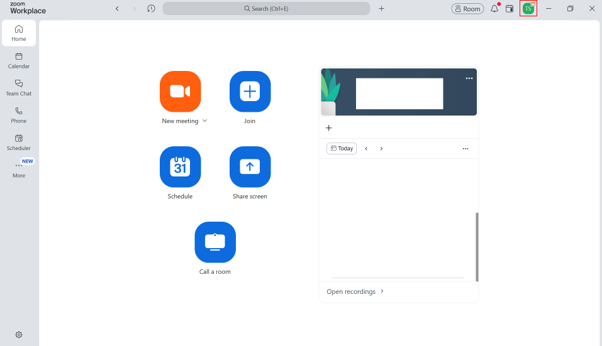 |
| 2. Click profile, then my profile. |
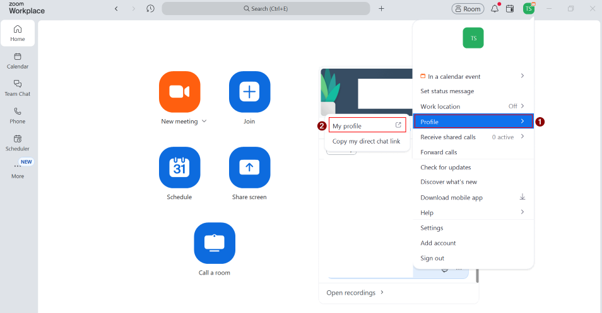 |
3. Zoom will then open in a new tab on your web browser. |
Please note: The All Screens Mode meeting feature is currently not available in conjunction with the Zoom Supervised Assessment template. If you require All Screens Mode, please follow Manually Applying Recommended Zoom Settings.
Setting up the Zoom
- Sign into the Zoom web portal using your university account — not a personal account.
- Schedule a new Meeting. Set the date, start time, and duration. Include a window of 15 minutes both before and after the quiz to give additional time to the duration of the meeting.
- Set a meeting passcode and provide it to students within the Canvas course site alongside the Zoom link.
- Enable the waiting room so students’ queue before being admitted. This lets you control when students enter.
- Send the meeting link and passcode to students in advance, along with any expectations (camera on, microphone on, student ID ready, quiet space, single monitor).
- Do a brief test run the day before to confirm your audio, video, and settings work as expected.
- Provide students with an opportunity for a practice run. You can either provide a set time for students to practice live with you as the host or get them to ensure they have activated their UON Zoom account, downloaded the app and checked their microphone and video settings.
Next: Running and Monitoring the Session
Related links: Supporting Online Assessment Security Using Zoom, Considerations, and Practical Tips and Checklist
The University of Newcastle acknowledges the traditional custodians of the lands within our footprint areas: Awabakal, Darkinjung, Biripai, Worimi, Wonnarua, and Eora Nations. We also pay respect to the wisdom of our Elders past and present.