Using the Zoom Supervised Assessment Template
A pre-built template called 'Zoom Supervised Assessment' is available when scheduling your meeting, ensuring all relevant settings are automatically applied. Once the template is applied, focus mode can then be activated during the meeting as needed. Instructions can be found below.
Please note: The All Screens Mode meeting feature is currently not available in conjunction with the Zoom Supervised Assessment template. If you require All Screens Mode, please follow Manually Applying Recommended Zoom Settings.
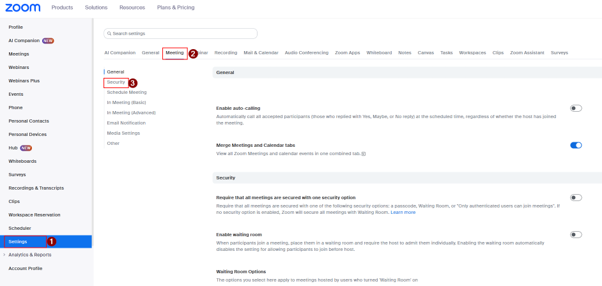
Enabling Authenticated Users Only (do this before applying the template)
| 1. Click settings, then Meeting, then security. |
 |
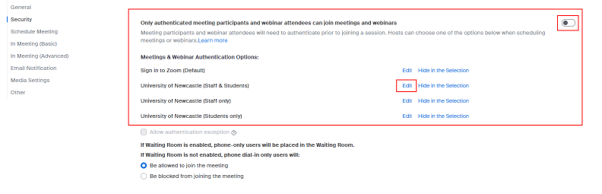
| 2. Scroll down until you find the below, toggle to enable and then click edit. |
 |
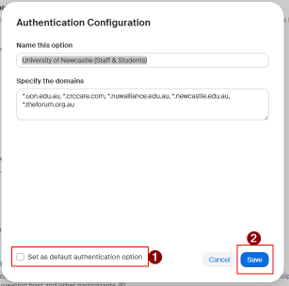
| 3. You can then set the University of Newcastle Staff and Students as your default authentication. |
 |
Adding the template
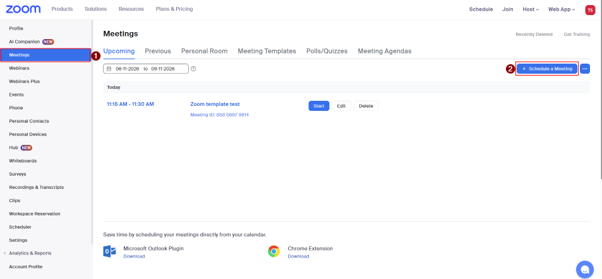
1. On your zoom web browser, navigate to the left-hand side options and click meetings, then click schedule a meeting. |
 |
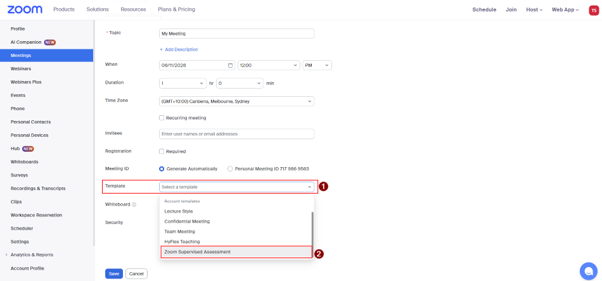
2. Click on the template drop down and scroll to the bottom until you see ‘Zoom Supervised Assessment’. |
 |
Enabling Focus Mode DURING the meeting
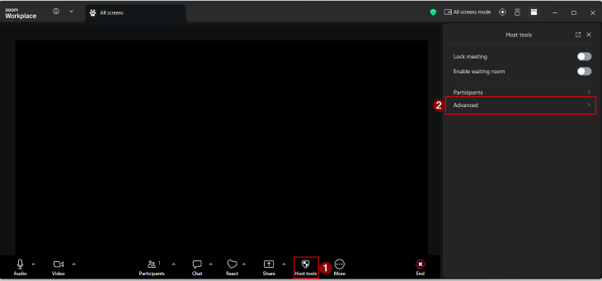
1. In the meeting click on ‘Host Tools’, then ‘Advanced’. |
 |
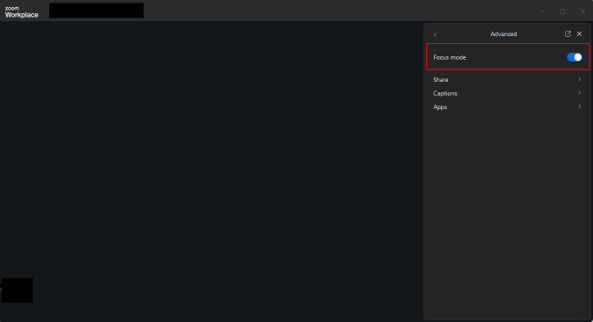
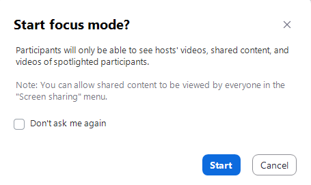
2. Enable focus mode and all screens mode by clicking the toggle button (This will show in blue). |
 |
 |
Back to: Recommended Zoom Settings
The University of Newcastle acknowledges the traditional custodians of the lands within our footprint areas: Awabakal, Darkinjung, Biripai, Worimi, Wonnarua, and Eora Nations. We also pay respect to the wisdom of our Elders past and present.