
Practical Tips and Checklist
- Zoom and Canvas operate independently. Students can access a Canvas quiz within its availability window without being in the Zoom session and can join the Zoom session without opening the quiz. These are separate systems — joining one does not require or confirm the other.
- To confirm that students are present in Zoom before the quiz begins, share the Canvas quiz password verbally or via chat within the Zoom session. Keep in mind this is separate from the Zoom passcode, which should already be embedded with the Zoom link in Canvas. Students who have not joined the Zoom session will not receive the quiz password and will be unable to start, making this a simple and effective way to verify attendance before the quiz opens.
- Ensure students are logging in with their UON domain account in advance. Confirm this during your student communications and practice session so they are set up and ready before the official quiz.
- Join your own meeting from a second device before the session to see what students will see. This catches permission issues early.
- Close unnecessary applications on your computer before starting. This avoids notifications appearing on your screen and keeps your setup clean if you ever need to share your screen. Note that Teams will continue sending banner notifications even if unopened. Change this in the Teams settings to prevent notifications from appearing on your screen during the session.
- Keep the Participants panel open throughout the session. It shows who is present, who has their hand raised, and who is unmuted.
- ‘Mute All’ is available in the Participants panel if background noise becomes disruptive. However, consider keeping students unmuted as an additional layer of oversight — students can turn their speaker volume down once the quiz commences.
- Save your meeting as a template once configured so you can reuse the same settings for future sessions without starting from scratch.
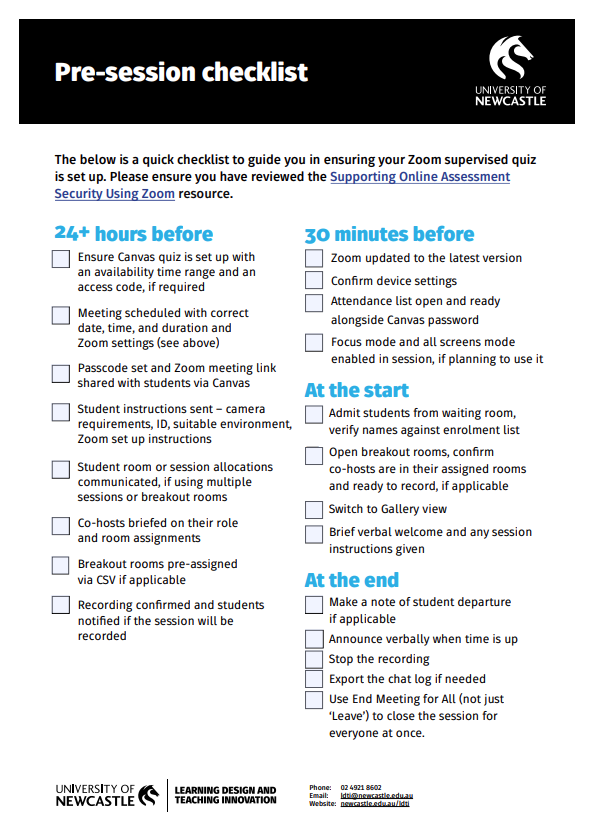
Download a quick checklist that will guide you in ensuring your Zoom supervised quiz is set up correctly.
Related links: Supporting Online Assessment Security Using Zoom, Considerations, Recommended Zoom Settings, and Running and Monitoring the Session
The University of Newcastle acknowledges the traditional custodians of the lands within our footprint areas: Awabakal, Darkinjung, Biripai, Worimi, Wonnarua, and Eora Nations. We also pay respect to the wisdom of our Elders past and present.