
BYOD at The University
Bring your own device (BYOD) allows you to use your personal laptop or device to access a broad range of course related applications for learning, whether face to face in the classroom, when you’re at home, or any other location with an internet connection.
BYOD offers flexibility and convenience by allowing you to learn using technology you are already comfortable with. Using your own laptop or device enables seamless access to course materials, specialised software, and online resources anytime and anywhere, supporting both independent study and collaboration. BYOD also helps ensure continuity in your learning experience, as your settings, files, and applications remain consistent whether you are on campus or studying remotely.
BYOD information for Students
Essential Requirement: what you must bring
In general, any Windows or MacOS based laptop computer purchased in the past two years should be capable of meeting most of your learning needs at The University of Newcastle. Other devices such as tablets and smartphones may also enable access to many common communication platforms and learning experiences however, there are likely to be aspects of most courses where the computing capability of these devices alone is insufficient.
You may already own a suitable device or need to consider purchasing new hardware. In either case, it’s important to review the device specifications carefully to ensure they meet the recommended requirements and can support your learning needs both now and into the future.
Below is a list of key specifications for BYOD. This is considered a minimum specification, and you should consider your overall needs and the specific needs of your enrolment.
| Component | Windows | macOS |
| Processor | Intel i5 (12th Gen+) / AMD Ryzen 5 (5000 series+) (or higher). | Apple M3 (or higher). |
| Operating System | Windows 11 or newer (latest supported version) | macOS 15 or newer (latest supported version) |
| Memory (RAM) | 16GB RAM (or higher) | 16GB RAM (or higher) |
| Storage | 512GB SSD (or higher) | 256GB SSD (or higher) |
| Display | 13”- 16” | 13”- 16” |
| Accessories | Integrated/External Webcam and Microphone | Integrated/External Webcam and Microphone |
Specialised Software and Hardware considerations
- Virtualisation/Specialised Software: If your course or research requires running third-party virtual machines (e.g., using VMWare, VirtualBox for specific OS testing or network environments), you must ensure your device is compatible. DTS does not provide assistance with third-party virtual machines.
- Warning for ARM-based Apple hardware (M-Series): While generally powerful, current ARM-based Apple M-series chips may not be compatible with certain specialised software. Check with your relevant School if your research involves high-dependency software or operating system virtualisation.
- Non-Windows or macOS operating systems: Only Windows and macOS operating systems are supported by DTS. Other operating systems such as Linux are not supported.
When purchasing a BYOD device, you have the freedom to choose from a wide range of reputable retailers, both online and in-store. This allows you to select a device that best suits your course requirements, personal preferences, and budget. You can compare specifications across different brands and models, ensuring the device meets the recommended standards while aligning with how you plan to use it for study.
Buying your own BYOD device also means you can shop around for the best value by comparing prices, taking advantage of sales, educational discounts, and bundled offers. This flexibility empowers you to find competitive deals, extended warranties, or accessories that suit your needs, often resulting in better overall value than a one-size-fits-all option.
JB Hi-Fi BYOD Hub:
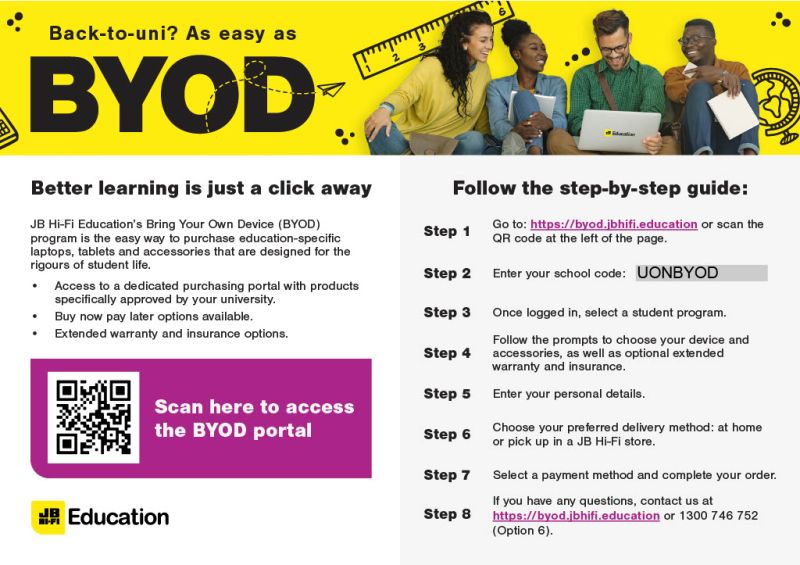
The University of Newcastle has partnered with JB HI-FI, with a dedicated portal in place to assist students. For students looking to purchase a device with university endorsed specifications, the JB Hi-Fi Education Bring Your Own Device (BYOD) program is recommended. This JB HI-FI Education portal provides access to education-specific laptops, tablets, and accessories designed for student life.
Key Benefits:
- Approved Products: Access a dedicated purchasing portal with products specifically approved by your university.
- Protection: Optional extended warranty and insurance options can be purchased.
- Financing Options: Buy now pay later options are available.
Other options
- Loan Program: A limited number of short-term loan laptops are available. These are accessible from our Mann Street Gosford campus and also our libraries.
- Financial Assistance - Student Laptop Grants: Students experiencing financial hardship and requiring assistance to purchase a suitable laptop can apply for financial assistance through student laptop grants
- HDR Students may apply to access up to $2,000 of Direct Research Costs funding in their first year (or FTE). These funds are allocated principally to support students with any costs associated with the University’s approach to BYOD.
- Discounts: Explore student purchasing programs for potential discounts on new devices.
- Purchase through the UNSA Laptops for Less program
- Learn more about what hardware discounts are available to Students and Staff.
Device physical security
- Personal Responsibility: You bring your device onto the University of Newcastle’s campuses at your own risk. The University is not responsible for the theft, loss, or damage (intentional or unintentional) of your personal equipment.
- Power charging: Ensure your device is fully charged before coming to campus. While electrical power points are available in many learning spaces, the University does not provide charging cables, and you are responsible for managing your device’s battery life.
- Insurance & warranty: Students are strongly advised to obtain their own personal device insurance to cover theft or damage. Extended warranties and accidental repair options are available for hardware purchases completed through the JB Hi-Fi BYOD Hub
System & data
Data storage
- Maintain a robust and regular backup of all your data, personal files, and documents using Microsoft 365 OneDrive. Microsoft 365 OneDrive is the recommended central place where you can be assured all your files are safe, whilst having ease of access on all your devices, making it a breeze to locate important documents for your studies or work.
Device operating system and internet browsers
- Ensure your device running a supported and up-to-date operating system with the latest security patches installed.
- In addition, ensure your internet browsers (such as Chrome, Edge, Firefox, or Safari) are fully updated, as outdated browsers can pose significant security risks and may not function correctly with University applications. Keeping your device updated helps maintain network security, ensures compatibility with UON online systems and learning platforms, and provides a safer, more reliable experience when accessing University resources.
- Protect your device by enabling a lock screen for your device and PIN or password.
- Your device must also have reputable antivirus or endpoint protection software enabled and kept current to help protect both your personal data and University systems from malware, ransomware, and other security threats.
BYOD (Bring Your Own Device) policies
All BYOD devices are subject to the following University of Newcastle policies:
You can access software on personal devices several ways:
- AppsAnywhere – the University’s online App Store where you can access a catalogue of over 130 (and growing) applications. No need to download or install software on your laptop. Accessible any time, anywhere.
Note, AppsAnywhere is currently limited to Gosford-based students and staff and HDR Students and HDR Supervisors
- Direct download - software packages and programs available for students to download to your devices for free, while you are a student
Free Software for Students
- Microsoft Office 365: Students can download and install Office 365 for free on up to five personal devices.
- Information on other free software that is available to you while you are a current student can be found here (please check to see if the app is available via AppsAnywhere first) - Software for personally owned computers and other BYOD
What DTS Can Support (In Scope)
DTS will provide assistance with:
- Connecting your device to the University’s wireless network.
- General advice related to UoN systems and network connectivity.
- Accessing your UoN student email and assigned credentials.
- Accessing and troubleshooting AppsAnywhere and other UoN-licensed applications (e.g., Canvas, MyUni).
What DTS Cannot Support (Out of Scope)
DTS will not assist with the following:
- Hardware Issues or Repairs: Replacing broken screens, diagnosing performance slowness, or fixing internal component failures.
- Data Recovery: Retrieving lost or corrupted data from a failed device’s hard drive
- Operating System Malfunctions: Troubleshooting startup errors, re-installing Windows/macOS, or resolving OS-level driver conflicts.
- Non-UoN Software: Support for personal applications (e.g., gaming, personal productivity, non-UoN related software).
Getting Help
- Online Support: Start with the DTS ServiceNow Portal for comprehensive knowledgebase guides and frequently asked questions (FAQs).
For example:
- How to get started with personal devices (BYOD)
- University of Newcastle Wi-Fi - information for students, staff and visitors
- How to check for software updates on my personal device
Limited In-Person Support: Visit the Student Hub at your campus (e.g., Gosford Central Level 1 Help Desk) during the first weeks of semester. You must be present with your device throughout the support session. After this period, please contact the DTS Service Desk on (02) 4921 7000 or log a ticket via the service portal https://17000.newcastle.edu.au.
External Support: For out-of-scope issues (hardware/OS repair), you must seek assistance from your device supplier or a third-party repair service.
BYOD Frequently Asked Questions
What is BYOD?
BYOD (Bring Your Own Device) allows Students to use their personal laptop or device to access University learning systems, software, and online resources both on campus and remotely.
Does my device need a USB-C port?
Yes. Your device must have at least one USB-C port that supports:
- USB Power Delivery (USB-PD) for charging
- DisplayPort Alternate Mode (DP Alt Mode) for external displays and video output
- USB data and audio connectivity for peripherals such as webcams, microphones, speakers, and docking stations
A USB-C port that only supports charging or basic data transfer is not sufficient for BYOD compatibility.
Will any USB-C cable or USB-C port support monitors and docking stations?
No. USB-C is the physical connector type only, and not all USB-C ports provide the same functionality.
For compatibility with workplace technology, the USB-C port must support the required standards for:
- Laptop charging
- External displays (Display Port)
- USB peripherals
- Audio/video devices
Users should confirm their device specifications before purchasing or using a BYOD device.
Do I need a Thunderbolt or USB4 device?
No. Thunderbolt or USB4 is not a minimum requirement, but devices supporting these standards generally provide improved performance and compatibility with advanced docking stations, multiple displays, and future workplace technology.
The minimum requirement is a USB-C port supporting USB Power Delivery (USB-PD), DisplayPort Alternate Mode (DP Alt Mode), and USB data connectivity.
Is BYOD mandatory for ALL students?
No. However certain courses, or campus locations may require students to use their own BYOD hardware. Your course enrolment will advise you if you need your own BYOD hardware. In these instances, students are expected to have regular access to a suitable personal computer that meets the University’s recommended specifications to support learning and research activities.
Can I use a desktop computer instead of a laptop?
While desktop computers may be suitable for off-campus use, a laptop is strongly recommended as many learning and research activities require mobility on campus.
What operating systems are supported by DTS?
DTS supports Windows 11 (or newer) and macOS 15 (or newer) only. Other operating systems, including Linux, are not supported.
Will a tablet or smartphone be enough for my studies?
No. Tablets and smartphones may support basic tasks such as email and Canvas access, but they are not sufficient for most HDR learning, research, and specialised software requirements.
Do Apple M-series (ARM) MacBooks work with all software?
Most standard software works well, but some specialised or virtualised software may not be compatible. You should confirm requirements with your School or supervisor before purchasing.
Does DTS support virtual machines like VMware or VirtualBox?
No. DTS does not provide support for third-party virtual machines. Compatibility and setup are the student’s responsibility.
Do I have to buy my device from JB Hi-Fi?
No. You may purchase your device from any reputable retailer. The JB Hi-Fi BYOD Hub is recommended however, because it offers University-endorsed devices and student-friendly options.
Are discounts or payment plans available?
Yes. Education pricing, sales, and buy-now-pay-later options may be available through retailers such as JB Hi-Fi and other student purchasing programs. It is your responsibility to determine if these options suit your needs.
What if I can’t afford a suitable device?
Students experiencing financial hardship may be eligible for Student Laptop Grants or other financial assistance options provided by the University.
Does the University provide loan laptops?
Yes. A limited number of short-term loan laptops are available for essential campus use with time limits in place.Can HDR students access research funding to purchase a laptop?
Yes, HDR students can apply to access up to $2,000 of Direct Research Costs funding once they have successfully completed the First Year Success Program in Canvas.
How do I access University software on my personal device?
You can access software through AppsAnywhere, direct software downloads, or cloud-based applications provided by the University.
Who can use AppsAnywhere?
AppsAnywhere is available to HDR students and HDR supervisors, and to Gosford-based staff and students.
Do I need internet access off campus?
Yes. You are responsible for your own internet connection and associated costs when studying remotely.
Is Microsoft Office free for students?
Yes. Students can install Microsoft Office 365 on up to five personal devices for free while enrolled.
Do I need antivirus software on my personal device?
Yes. Your device must have reputable antivirus or endpoint protection software installed and the operating system and web browsers kept up to date.
How should I back up my data?
Students are strongly encouraged to use Microsoft 365 OneDrive for data storage, ensuring secure storage and easy access across devices.
What happens if my device is lost, stolen, or damaged on campus?
The University is not responsible for personal devices. Students are strongly advised to consider their own insurance.
What BYOD issues can DTS help me with?
DTS can assist with:
- Connecting to UoN Wi-Fi
- General advice relating to UoN systems
- Accessing student email and credentials
- Using AppsAnywhere and UoN-licensed software
What can DTS not help with?
DTS does not support:
- Hardware repairs or physical damage
- Data recovery from failed devices
- Operating system reinstalls or failures
- Personal (non-UoN) software
Where do I get help if my device is broken?
For hardware or operating system related issues, you must contact your device supplier or a third-party repair provider.
How do I contact DTS for help?
You can:
- Log a request via the DTS ServiceNow Portal
- Call the Service Desk on (02) 4921 7000
- Visit a campus Student Hub during early semester support periods
The University of Newcastle acknowledges the traditional custodians of the lands within our footprint areas: Awabakal, Darkinjung, Biripai, Worimi, Wonnarua, and Eora Nations. We also pay respect to the wisdom of our Elders past and present.