

Teaching and research

H5P Live Engagement Tools
H5P Live Engagement tools allow you to interact with students in real time during lectures, tutorials or online sessions. They are well suited to quick check-ins, informal formative activites, and prompting discussing during class.
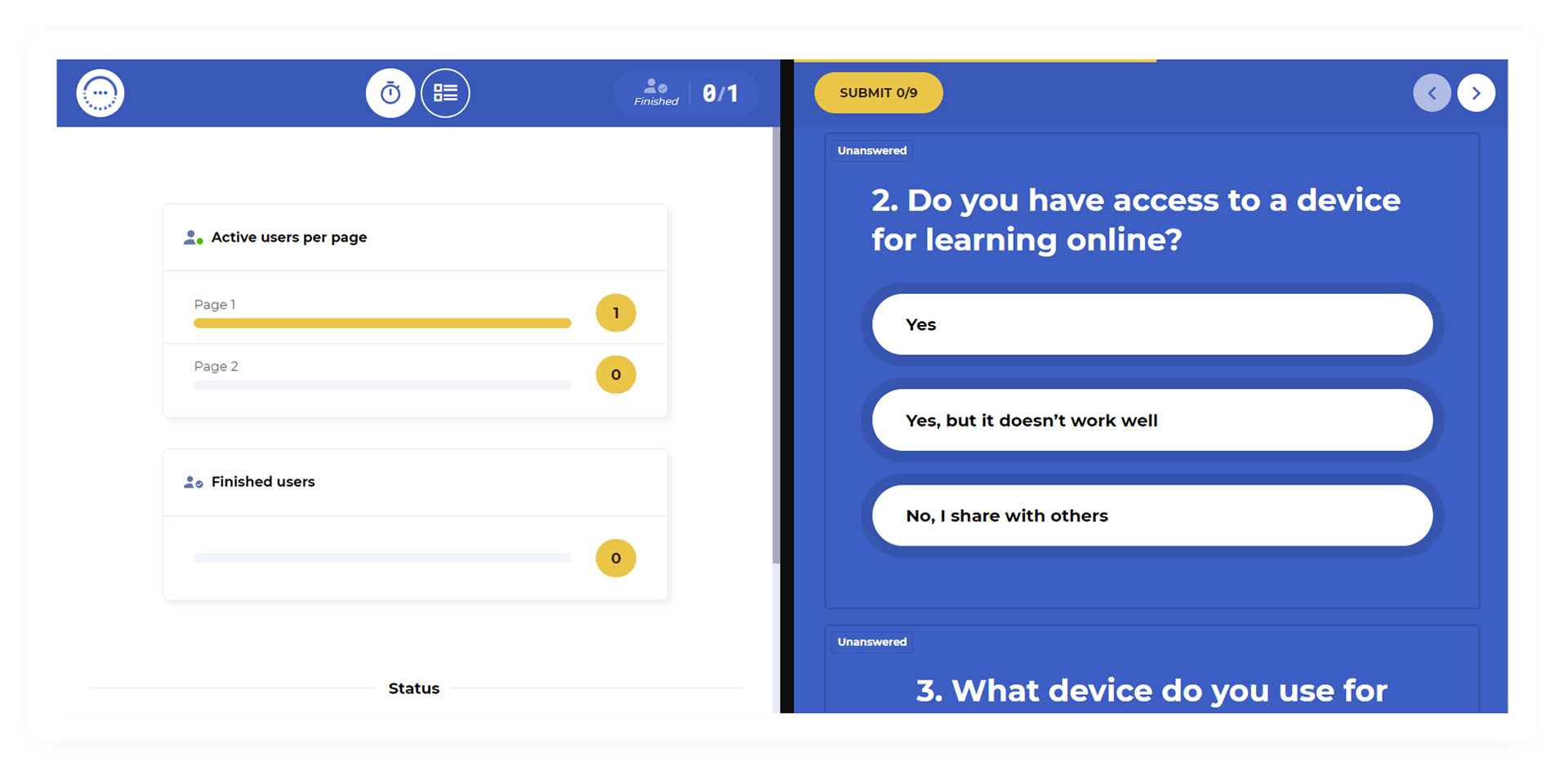
This page provides a brief introduction on creating and delivering H5P's Live Engagement Tool activities, which are Multipoll, The Chase, Emoji Cloud and Word Cloud.
Live Engagement Tools at a Glance
Multipoll
Multipoll allows you to create flexible, multi-page live activities that combine informational content with interactive questions.
You can use Multipoll to:
- Present text, images, or video alongside questions
- Include multiple pages within a single activity
- Ask a mix of question types, including Multiple Choice Questions, Word Clouds, Emoji Clouds, Hot Spots
H5P has tutorial videos you can access for multipoll.
The Chase
The Chase is a game-based activity where students answer a series of questions in a competition format.
Common uses include:
- Revision and review activities
- Energising large lectures
- Informal knowledge checks with a competitive element
H5P has tutorial videos you can access for the chase.
Emoji Cloud
Emoji Cloud allows students to respond to a prompt using emojis, with responses displayed live as a collective cloud.
Common uses include:
- Quick emotional or confidence check-ins
- Gathering instant reactions to content
- Low-effort participation from large cohorts
H5P has tutorial videos you can access for the use of emoji cloud.
Word Cloud
Word Cloud allows students to submit short text responses that appear live as a shared visual cloud.
Common uses include:
- Brainstorming ideas or concepts
- Gathering keywords or short responses
- Surfacing prior knowledge or reflections
H5P has tutorial videos you can access for the use of Word Cloud.
Creating and Sharing a Live Engagement Activity
If you have not used H5P previously, you will first need to create an account which can be done by accessing the LTI tool within Canvas that is outlined in the Creating H5P Activities resource.
The creation process for H5P Live Engagement tools is similar across all activity types.
- Access H5P from uonline.h5p.com
- Select 'Add Content'
- Choose the Live Engagement Tool you want to use (e.g. Multipoll, The Chase, Emoji Cloud, Word Cloud).
- Enter your questions, answers, prompts etc. and adjust any relevant settings.
- Save the activity
Live Engagement activities are designed to be shared live, during class. The basic steps to share an activity are as follows.
- Open your activity in uonline.h5p.com
- To share via URL: select the 'Share' button in the top right corner and copy the external link. To share via game code: direct students to go.h5p.com and provide the game code listed on the activity
- Students access link or enter in game code on their own device.
- Wait for students to join and facilitate the delivery of activities from your own device.
For More Information
H5P's help page is a great place to find more detailed information including links out to further resources on specific activities, explanations and tutorials, specific information on settings and much more.
If you have more specific questions or need a hand getting started, you can also get in touch with the Learning Technology Support Team.
The University of Newcastle acknowledges the traditional custodians of the lands within our footprint areas: Awabakal, Darkinjung, Biripai, Worimi, Wonnarua, and Eora Nations. We also pay respect to the wisdom of our Elders past and present.