
Author Accepted Manuscripts
What are Author Accepted Manuscripts (AAMs)?
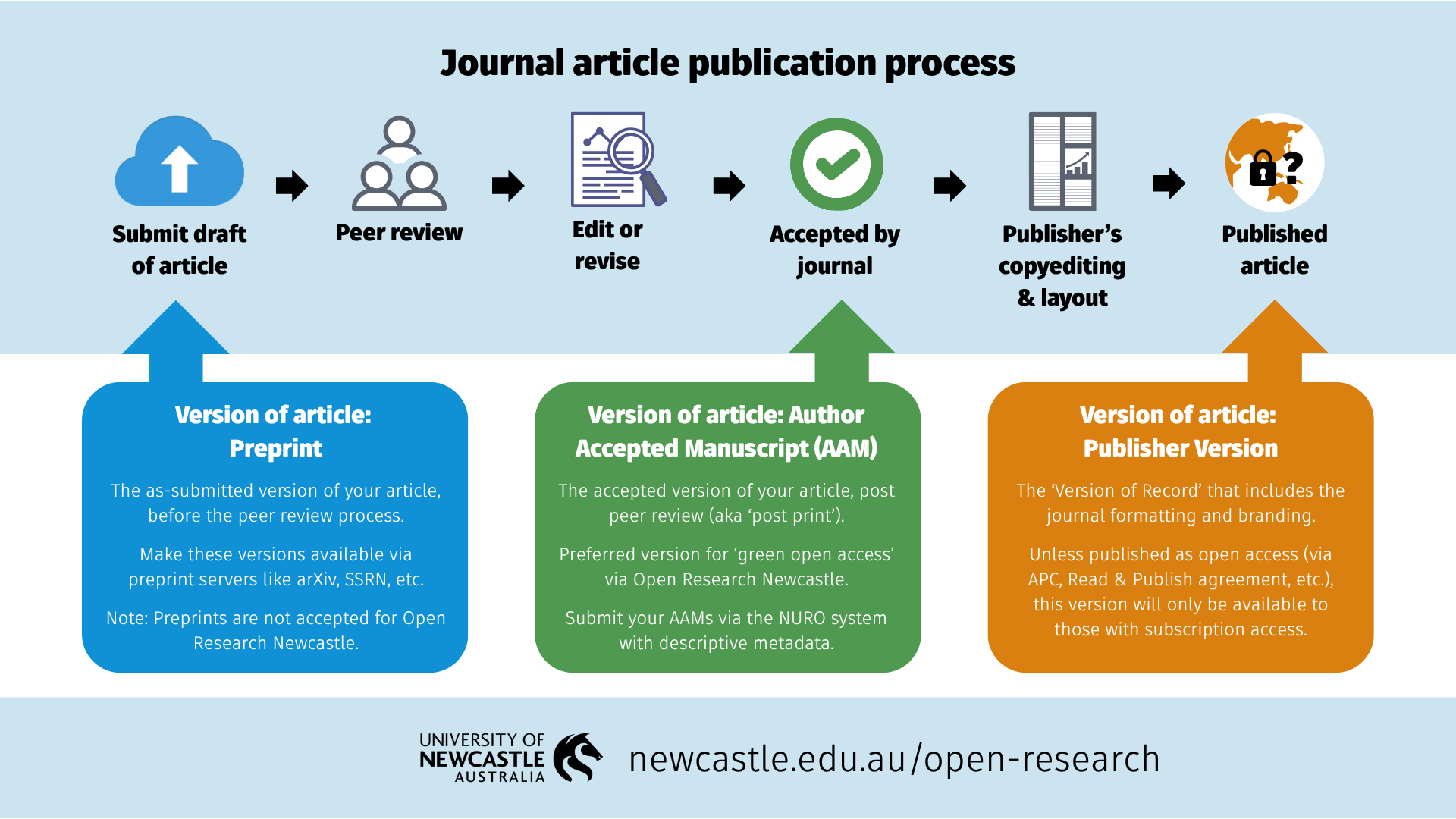
Author Accepted Manuscripts (AAMs, also known as 'post-prints'), are the version of your article that has gone through the journal's peer-review process. They will usually be in Microsoft Word, LaTeX, or PDF format and generally be a plain text version that does not include the publisher’s branding.
Why are AAMs important?
AAMs are important for 'green open access', also known as repository open access. Many publishers allow for AAMs to be deposited to an institutional repository, meaning that even where paid open access hasn't been undertaken (e.g., via a Read and Publish Agreement or through payment of an APC), you may still be able to post the AAM as open access.
Posting AAMs to an institutional repository is an approved way to meet funder and open access requirements (e.g., for ARC and NHMRC/MRFF), as well as those of the University. The University's institutional repository is Open Research Newcastle - AAMs can be submitted via records in the NURO research outputs management system.
Are there limitations on how AAMs can be made open access?
Any use of AAMs will be reliant on the publishing agreement you sign, so it's always important to read these carefully. Many agreements will include restrictions on how AAMs can be used, particularly around embargo period requirements. You may also be asked to add a statement around where the final version of the article (the 'Version of Record') is located for the journal.
How can I locate my AAMs?
Depending on journal submission processes, you may have AAMs in emails or saved to your desktop or cloud storage. Remember that AAMs are the version after the peer review process and are different to submitted versions or preprints.
If you can't locate your AAMs, guidance on how you may be able to access them via different journal publisher systems is provided below:
ScholarOne (also known as Manuscript Central)
Archived until: ~1-2 years after publishing.
Instructions for Authors:
- Find your journal submission page. Log in.
- Click on the Author button located on the top left side of the page. This will redirect you to the author dashboard.
- Click on Manuscripts with Decisions in the sidebar.
- Click View Submission under the title of the manuscript you want. A blinded PDF of your article will download.
Editorial Manager
Archived until: Varies, usually up to 5 years after publishing.
Instructions for Authors:
- Find your journal submission page. Log in.
- Click on Submissions with a decision, in the Complete tab (the others are 'New submissions' and 'Revisions').
- Click on View submission next to the article you'd like to download from the list of your submitted manuscripts.
- If the file downloaded includes your reviewers' comments, you can remove these quickly using any PDF viewer to leave just the submitted manuscript. This can then be legally archived.
ScholarOne (also known as Manuscript Central)
Archived until: ~1-2 years after publishing.
Instructions for Authors:
- Find your journal submission page. Log in.
- Click on the Author button located on the top left side of the page. This will redirect you to the author dashboard.
- Click on Manuscripts with Decisions in the sidebar.
- Click View Submission under the title of the manuscript you want. A blinded PDF of your article will download.
eJournalPress (also known as Manuscript Tracking System)
Archived until: 2-5 years after publishing.
Instructions for Authors:
- Find the journal where your research was published. Log into your account.
- Click on the Manuscript(s) tab.
- A list of all your submitted manuscripts will appear. Click the red underlined link for the article you want to download.
- Download the Merged file containing manuscript text and display items, which should be at the top of the new page under Manuscript Items in a list of files.
eJournalPress (also known as Manuscript Tracking System)
Archived until: 2-5 years after publishing.
Instructions for Authors:
- Find your journal submission page. Log in.
- Click on the Post decision manuscript(s) option in the Author Task Guide to access your manuscript(s).
- Click the article you want to download from the list of your manuscripts.
- Download the Merged file containing manuscript text and display items, which should be at the top of the new page in a list of files.
ScholarOne (also known as Manuscript Central)
Archived until: ~1-2 years after publishing.
Instructions for Authors:
- Find your journal submission page. Log in.
- Click on the Author button located on the top left side of the page. This will redirect you to the author dashboard.
- Click on Manuscripts with Decisions in the sidebar.
- Click View Submission under the title of the manuscript you want. A blinded PDF of your article will download.
ScholarOne (also known as Manuscript Central)
Archived until: ~1-2 years after publishing.
Instructions for Authors:
- Find your journal submission page. Log in.
- Click on the Author button located on the top left side of the page. This will redirect you to the author dashboard.
- Click on Manuscripts with Decisions in the sidebar.
- Click View Submission under the title of the manuscript you want. A blinded PDF of your article will download.
Editorial Manager
Archived until: Varies, usually up to 5 years after publishing.
Instructions for Authors:
- Find your journal submission page. Log in.
- Click on Submissions with a decision, in the Complete tab (the others are 'New submissions' and 'Revisions').
- Click on View submission next to the article you'd like to download from the list of your submitted manuscripts.
- If the file downloaded includes your reviewers' comments, you can remove these quickly using any PDF viewer to leave just the submitted manuscript. This can then be legally archived.
Editorial Manager
Archived until: Varies, usually up to 5 years after publishing.
Instructions for Authors:
- Find your journal submission page. Log in.
- Click on Submissions with a decision, in the complete tab (the others are 'New submissions' and 'Revisions').
- Click on View submission next to the article you'd like to download from the list of your submitted manuscripts.
- If the file downloaded includes your reviewers' comments, you can remove these quickly using any PDF viewer to leave just the submitted manuscript. This can then be legally archived.
Editorial Manager
Archived until: Varies, usually up to 5 years after publishing.
Instructions for Authors:
- Find your journal submission page. Log in.
- Click on Submissions with a decision, in the complete tab (the others are 'New submissions' and 'Revisions').
- Click on View submission next to the article you'd like to download from the list of your submitted manuscripts.
- If the file downloaded includes your reviewers' comments, you can remove these quickly using any PDF viewer to leave just the submitted manuscript. This can then be legally archived.
System submission
Instructions and steps may vary between journals, depending on the system or submission platform used. Matching submission platforms against the other publishers above may be helpful, otherwise, see below.
Instructions for Authors:
- Find your journal submission page. Log in.
- Navigate to the paper you'd like to archive. Most journals divide your submissions in different categories, such as 'New submissions' or 'Submitted manuscripts', 'Revisions', and 'Manuscripts with a decision' (or 'Post decision manuscripts'). Category names may vary from journal to journal.
- Choose a version you can archive and download it. You usually won't want the final version in a list, as that is a publisher's version which usually isn't possible to archive. The publisher's version should be distinctive as it will have the publisher logo included.
Email or other electronic submission
AAMs will usually be a Microsoft Word file or similar and not have the publisher's logo or complete formatting. These will have gone through peer-review so may include comments or be identified in the file naming.
Advice for authors:
- Search your email, computer hard drive, and cloud storage.
- Ask your co-authors - for example, the corresponding author may have been given a copy.
- Contact the journal by email and ask for a copy of the 'accepted' version of your article.
With thanks to AUT's Tuwhera Open Access for the accordion content, reused under CC0
The University of Newcastle acknowledges the traditional custodians of the lands within our footprint areas: Awabakal, Darkinjung, Biripai, Worimi, Wonnarua, and Eora Nations. We also pay respect to the wisdom of our Elders past and present.