

Your web profile
Your researcher profile is an individual, publicly accessible internet profile on the University's website that provides a user friendly and efficient way of showcasing your work.
The Nexus system has been built specifically for the management of your researcher web profile. It is also used in the production of the University of Newcastle's ERA submission.
Researcher profiles are designed to highlight areas of expertise including research, teaching / mentoring / leadership and administrative. The Nexus system will automatically present this information on the University website by consolidating data from a number of University systems, such as HR, NURO, Open Research Newcastle, NUSTAR and RIMS.
You are able to delegate responsibility of your profile to other University staff with the impersonation functions (http://dotnet.newcastle.edu.au/Nexus/Impersonation/Index)
Nexus can also be used by PhD and Research Masters students to build online profiles.
Completing your personal profile in Nexus
How to set up a basic researcher profile
Once your profile is activated, Career, Publications, Grants and funding and Supervision tabs will appear on your profile. The information comes from various University databases which is used to populate your researcher profile. Please note: only non-affiliated research income and supervision outputs may be directly entered into Nexus. |
Parts of a profile
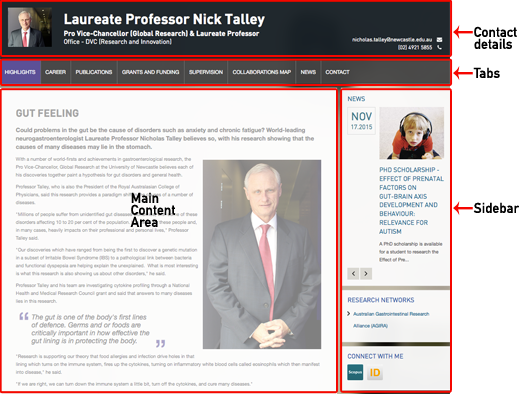
The tabs
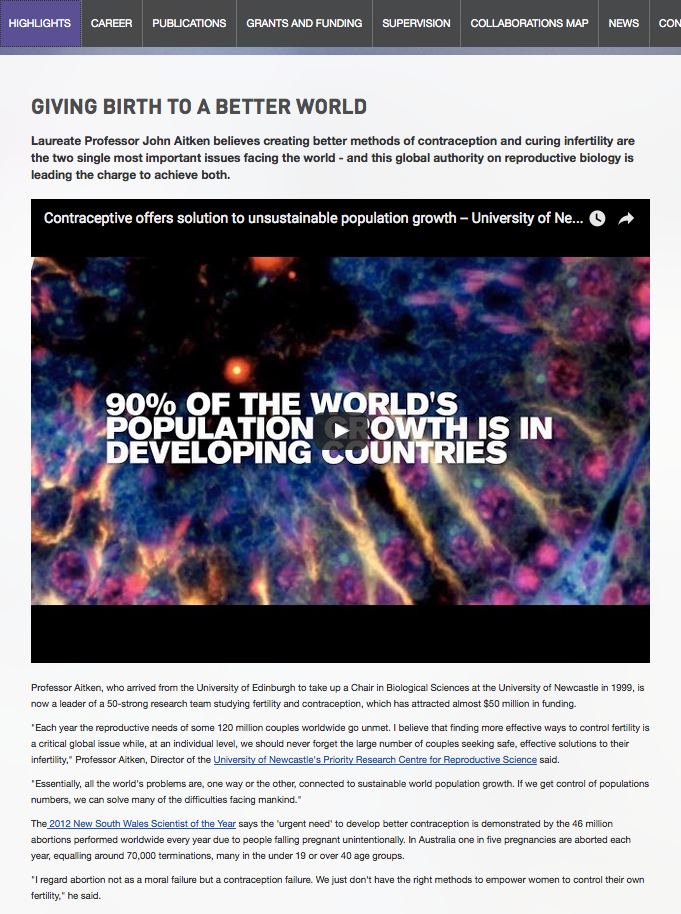
This is typically a high-level summary of your academic and research endeavours. It should ideally cover things like:
- a general description of your work and why it matters
- the challenges you're trying to solve through your work or a description of your high-level goals
- evidence of impact (or potential impact). How has your work made a tangible difference to people's lives, our region(s) or our world?
- the aspects of your work that motivate or excite you the most
- what's next in your research journey - what are you hoping to achieve in the future?
It's important that this information is written in simple, plain English. As you consider your content, write it as if you were sharing the information with someone who is not a researcher and has no previous knowledge of your field of work.
See below for an example of a highlight tab and story. This example uses first-person quotations, but you don't need to include this element. Your researcher highlights summary can simply be a description of the key points noted above, written from your point of view.
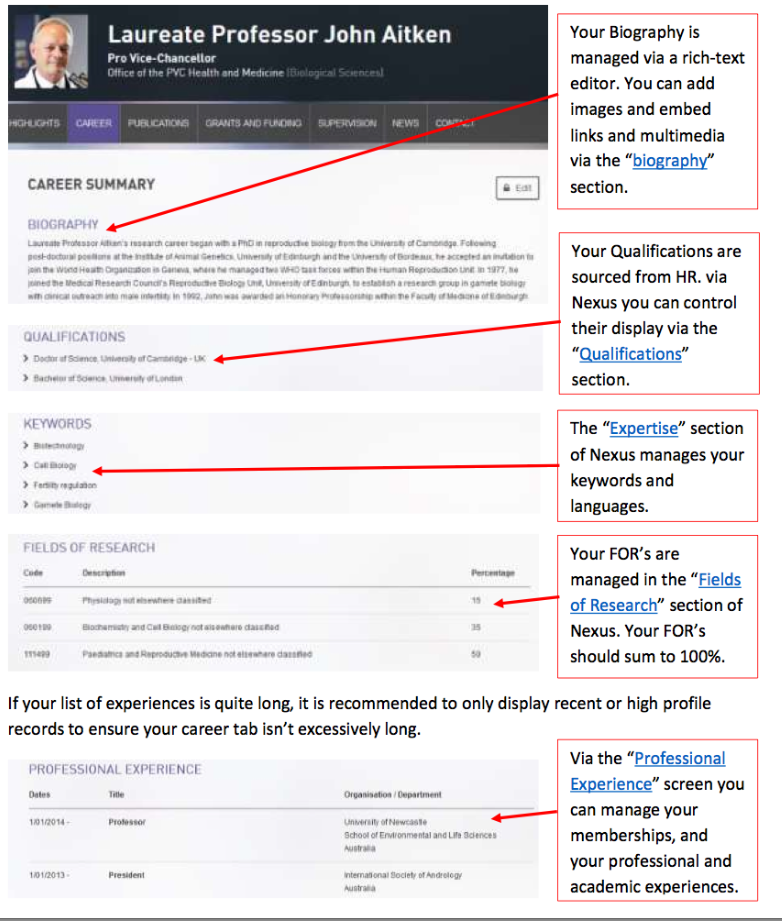
The "Career" tab of your web profile is populated with data from the "Biography" and "Esteem" section of Nexus.
Your biography manages information such as your Biography, Fields of Research code, Professional Experience and Qualifications. The Esteem section provides you with areas to record Awards, Invitations, prestigious works etc.
The RPS team recommends each profile have a completed biography, keywords and Fields of Research codes selected.
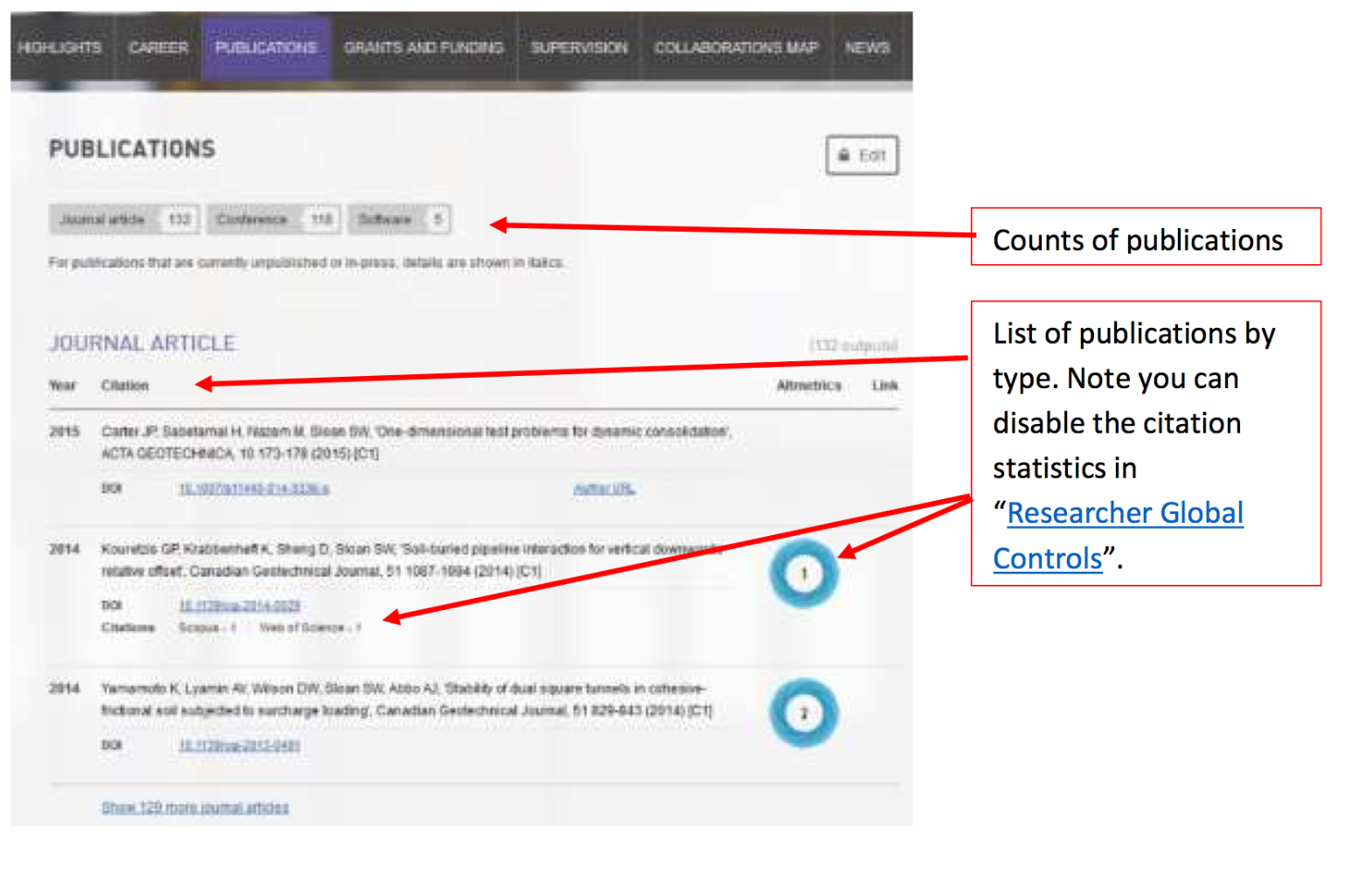
Nexus will feed your publication records to your web profile by type i.e. Book, Book Chapter etc. and in chronological order.
The source of all of your publication records is the NURO system, Nexus simply provides you with the tools to manage the display of your publications and to add/manage additional descriptive information.
You can use the "Publications" section of Nexus to filter your list of publications, highlighting those publications that are your best work. If you wish to add a new publication, you can do this by logging into the NURO system.
Note: You can also upload open access texts of your publications to the University Repository via NURO. Links to attached texts are automatically displayed in your profile. If you need support uploading texts, please contact for support.
Nexus will feed your grant records to your web profile in chronological order, and only successful grants are shown by the system.
The source of all of your grant records is the RIMS system, Nexus simply provides you with the tools to manage the display of your grants and to add/manage additional descriptive information.
Unlike the publications section, Nexus will allow you to create grants locally in Nexus (This can be useful to build a complete profile of you r research funding). To add a new grant, simply click the "Add Grant" button within the "Grants" section of Nexus. You can also use the "Grants" section of Nexus to filter your list of grants, highlighting your best work.
If you discover an error in your records, please contact the grants team at research-grants@newcastle.edu.au for support.
Example of a grants and funding tab
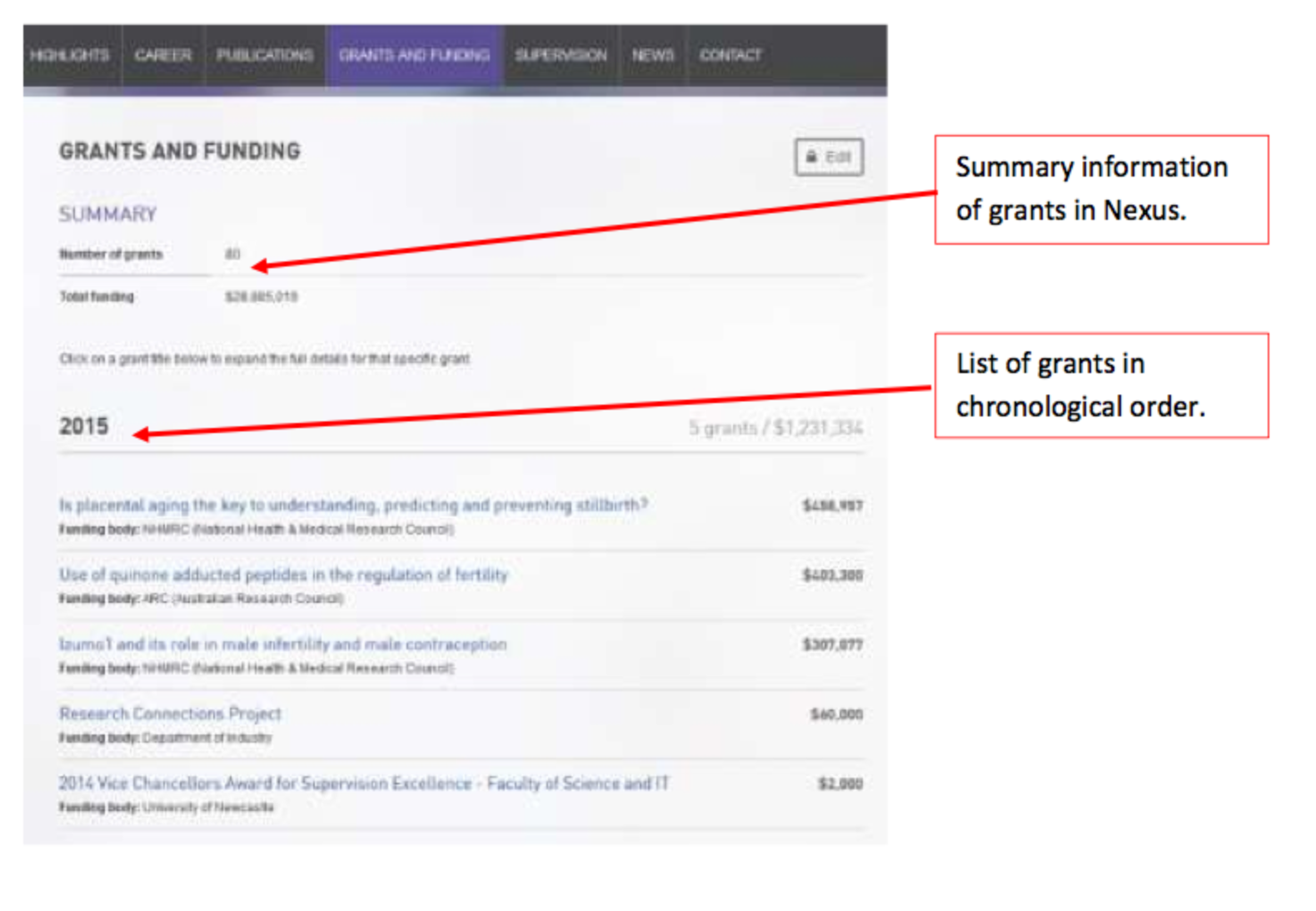
Nexus will feed your current and past supervision records to your web profile in chronological order.
The source of all of your supervision records is the NUSTAR system, Nexus simply provides you with the tools to manage the display of your records and to add/manage additional descriptive information. Nexus will allow you to create supervision records locally in Nexus (This can be useful to build a complete profile of your research supervision).
To add a new record, simply click the "Add Student" button within the "Supervision" section of Nexus. You can also use the "Supervision" section of Nexus to filter your list of students, highlighting your current or best students work.
If you discover an error in your records, please contact the Office of Graduate Studies at Research@newcastle.edu.au for support.
Example of a supervision tab
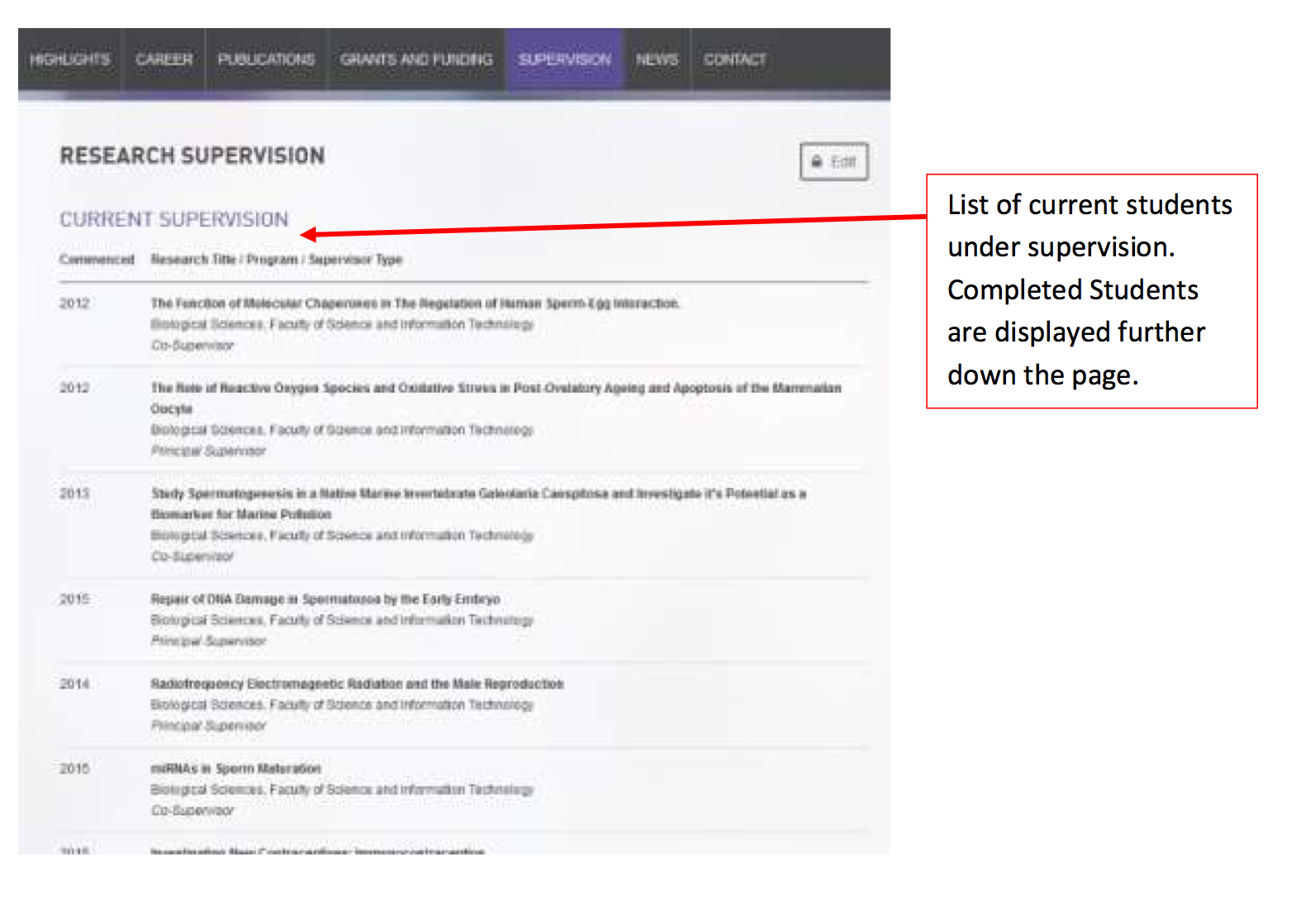
The "Collaborations Map" is a novel way to display the geographical location of your co-authors. The map sources data from the NURO system where the address details of co-authors are recorded by Scopus and Web of Science. The map is not intended to support analytical functions, it is simply a visual representation of countries where you have at least one co-author listed. Given the map relies on the accuracy of records provided by third parties, the data is not verified.
To toggle the display of your Collaborations Map in Nexus, please use the "Researcher Global Controls" and check the "Do not display 'Collaborations Map' tab" setting accordingly. This tab highlights your global connections by mapping the address information of your co-authors on a map of the globe.
Please contact rps@newcastle.edu.au for assistance with activating the collaborations map tab on your profile.
Example of a collaborations map tab
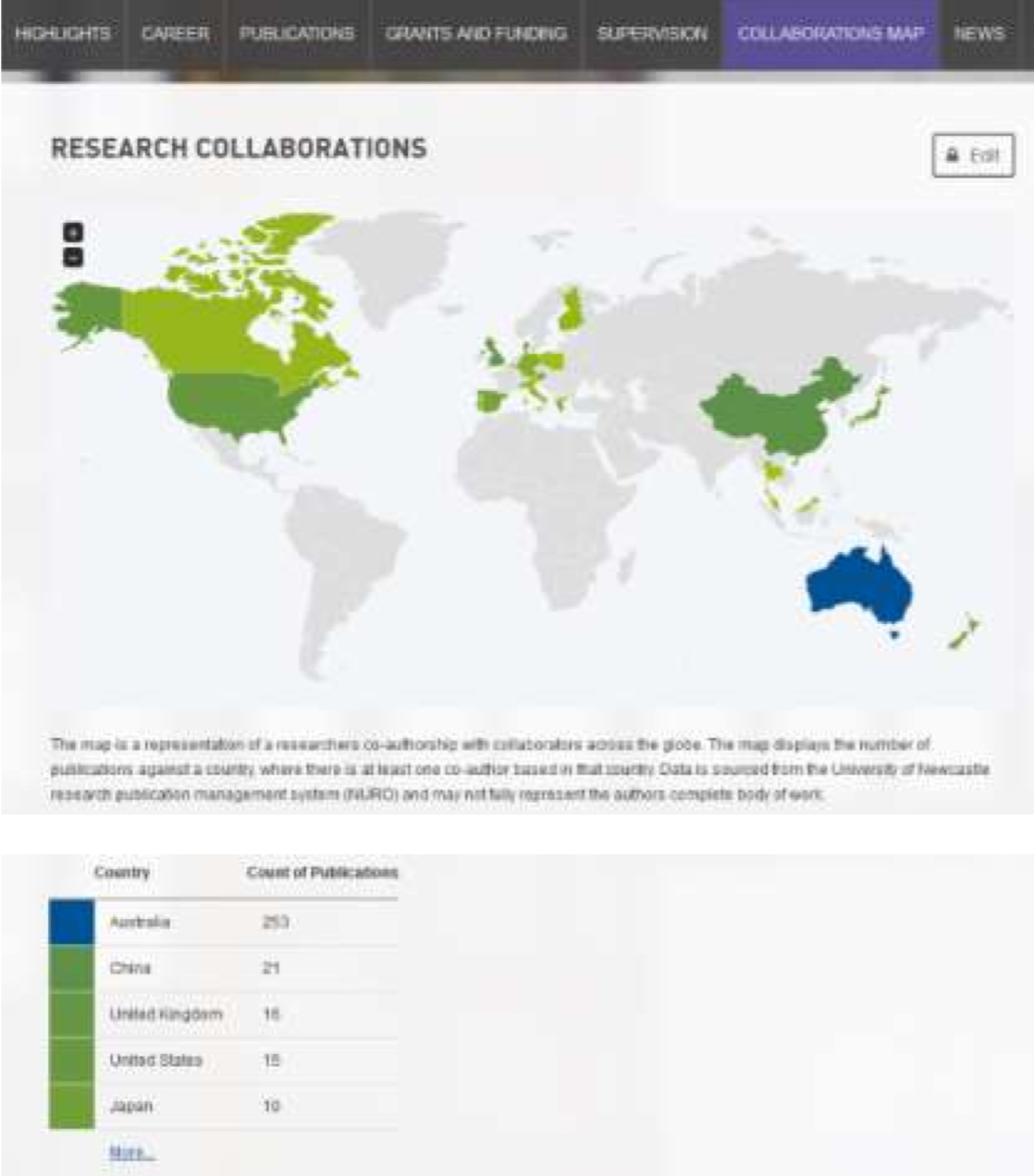
The 'News' tab will show all existing news articles on the UON website that you have been tagged in, these are the same articles that also show in the sidebar of your profile. The sidebar is limited to the most recent 5, whereas the 'News' tab will show all articles. New is primarily managed by the Media team within Marketing and Public Relations, however web publishers from Research, Faculties, and Schools can also create news articles and tag them to appear on your profile.
If you believe a news article is incorrectly appearing on your profile, and you're not sure who may have created the news article you can log a job via the Web Support Portal and they will be able to assist.
If you have some news you'd like added to your profile, or if there is an existing news story that you'd like to appear on your profile, you can log a job via the Web Support Portal.
Example of a News tab
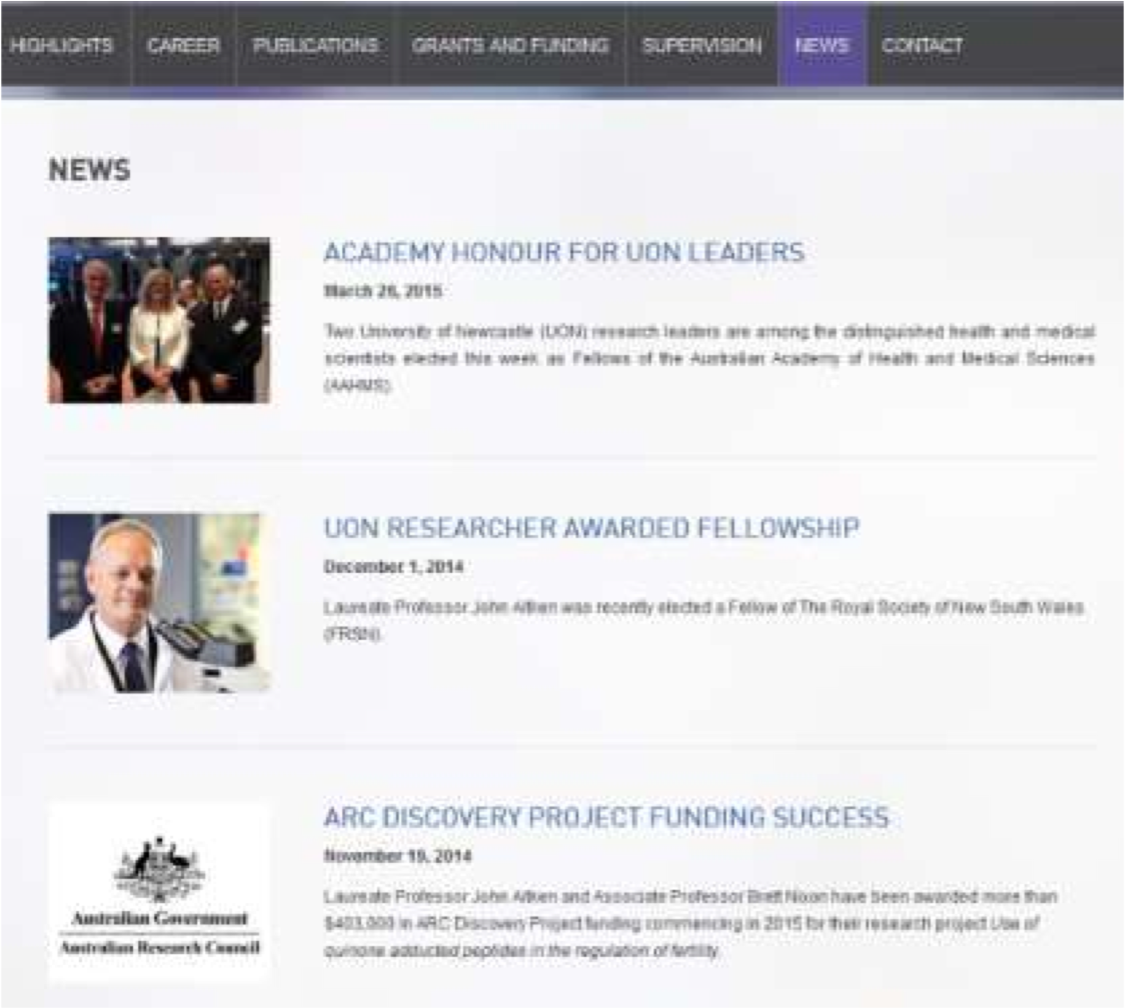
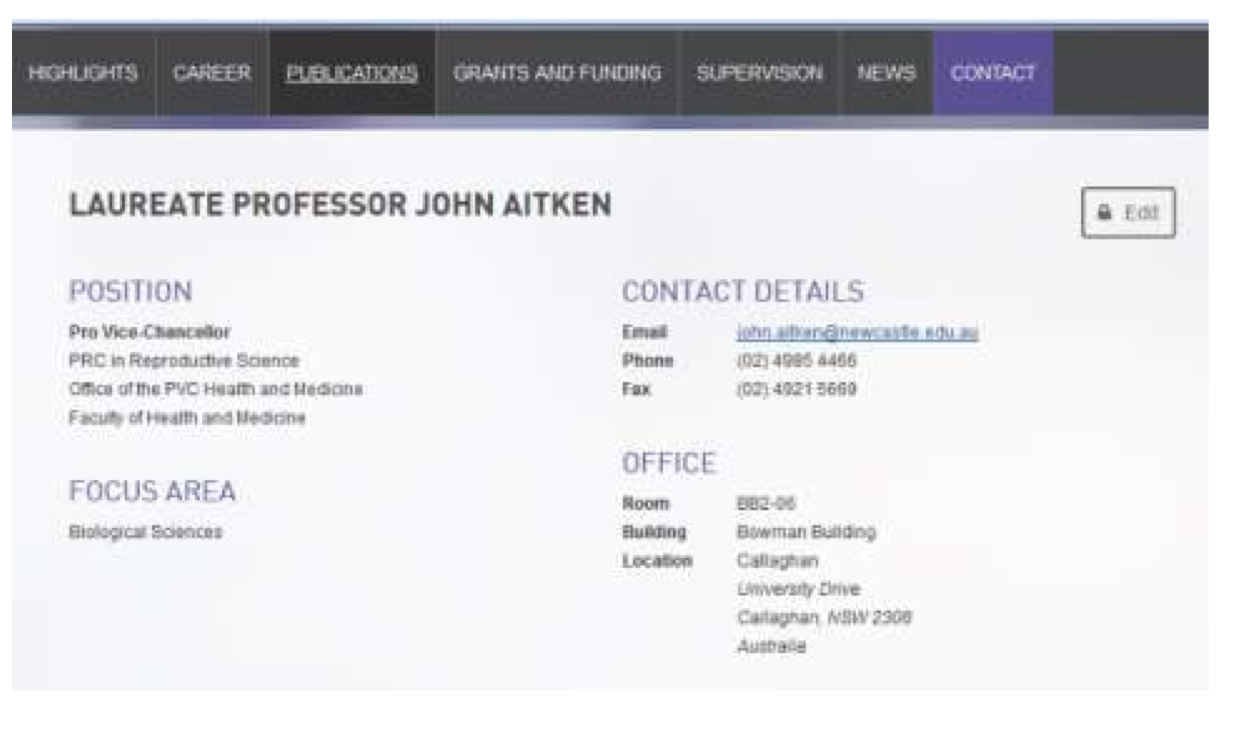
The contact details on your profile are sourced directly from the University's central HR and Identity Management systems. You are able to edit some of these details e.g. Phone, Room, Focus Area etc. directly within HROnline.
Queries relating to your position title should be directed to the HRIS team - hris@newcastle.edu.au or via your area's specific HR contact.
Queries relating to email addresses should be logged via the IT support portal - http://17000.newcastle.edu.au.
Example of a contact tab
Sidebar options
The 'News widget' displays the most recent existing news articles on the UON website that you have been tagged in, these are the same articles that show in the news tab on your profile. The sidebar is limited to the most recent 5, whereas the 'News' tab will show all articles.
News is primarily managed by the Media team within Marketing and Public Relations, however web publishers from Research, Faculties, and Schools can also create news articles and tag them to appear on your profile.
If you believe a news article is incorrectly appearing on your profile, and you're not sure who may have created the new article you can log a job via the Web Support Portal and they will be able to assist.
If you have some news you'd like added to your profile, or if there is an existing news story that you'd like to appear on your profile, you can log a job via the Web Support Portal.
Your membership in University groups and centres displays in the "Research Networks" widget in the sidebar. The data is managed by the RPS team in Nexus. Your current memberships can be viewed within Nexus.
Nexus gives you the opportunity to link your web profile to a wide variety of online resources. You may be more familiar with some of these options than others, so please see below for the full range of options. You can enter the links for each of these through the Research Identifiers and Links Management sections of Nexus.

academia.edu
A large and quickly growing online research community of over 10 million users driven by a commitment to open-platform research. Academics can share papers, monitor the impact of their work and also follow the work of others

A professional network that boasts over 300 million members spread across the planet. LinkedIn emphasises the benefits of a tailored online professional identity where you can engage with peers, discover potential career paths, access up to date industry specific news and build networks. LinkedIn invests more focus on industry and communities but you're not able to share your research with this resource.

ORCID
The online research community is getting more crowded by the second. ORCID is an open, non-profit platform aiming to provide the final solution – a central registry – to linking research activities and outputs to the right researcher. ORCID provides a persistent digital identifier that distinguishes you from every other researcher and, through integration in key research workflows such as manuscript and grant submission, supports automated linkages between you and your professional activities ensuring that your work is recognised. While ORCID is relatively new it shows every sign of being a central part of your e-research identity – some of the world's largest publishers, funders and institutions are beginning to use it.

ResearchGate
ResearchGate is a science oriented platform where members can interact with a massive user base –it has more than 7 million members – and share knowledge based on publications and research. Upload your publications and data, connect and collaborate with colleagues and specialists in your given field, get access to metrics and other stats on your research and enjoy the benefits of being part of community forums where you can find the right job, identify collaborators and refine research methodologies. Some users have complained about a fair degree of spamming – maybe something you're not so keen on … so be sure to have a good look and the notifications settings .

Researcher ID
Thomson Reuters researcher identifier that is integrated with the Web of Science database, allowing for a convenient method of finalising and keeping up to date you online research presence. Create your profile, build your publication portfolio and generate citation metrics from WOS, which indexes a wide variety of subject categories. Search and be searched within a large scholarly community. While members can search WOS for their publications to add, the ability to do so is restricted to those who have subscription access.

Scopus author identifier
This identifier is produced internally by the Scopus (Elsevier) database. So if you have published a paper that has been indexed by this large, multidisciplinary database you will have been assigned one of these. The unique number produced groups together all of an author's publications in the database and automatically calculates citation counts and the h-index.

Almost ubiquitous today, Facebook is a communication tool users are increasingly adopting for academic and research purposes. While many of us put it to a social use a page for your individual research or a group or organisation can be an effective way of maintaining a professional presence that will remain separate from your personal one. Promote your work, create events, and seek collaborators. Just remember it is up to you to determine who sees your profile and such is the nature of a network like Facebook, the boundary between your personal and professional face can easily be eroded.

Flickr
A Popular image and video hosting resource that has the potential to spread your images to the world. Organise, edit and share files – upload from many kinds of devices and develop a stylish, easily accessible set of fully searchable and indexed images that comprise aspects of your research or practice.

An increasingly popular image-based social media platform – and rightly so, Instagram is easy to use, looks good and takes full advantage of digital and mobile technology. Photos can be instantly shared, not only on Instagram, but also Facebook, twitter, Flickr, and Tumblr. You can also connect with other users, engage in conversations and tag your photos. Instagram is a resource that can be used in any way you wish, whether it is communication, expression or promotion – you are investing in what can be a rich dialogue of visual culture. Options for public or private accounts.

A neat resource that allows users to create visual bookmarks called 'Pins' that highlight points of interest from the web. It is used as a tool to collect, store and discover web resources and other media content such as videos and images. This content can be saved, sorted and managed according to your needs. Users can browse the content of others on the main page and in this way the app functions well as a facilitator of communication and exchange.

Skype
A popular and flexible communication resource with ever-growing capabilities. Skype's text, voice and video make it simple to share, collaborate and discuss. Use it on a range of devices to coordinate your personal and professional commitments. Free, entry-level access gives you a generous range of options and the opportunity to interact online with a large base of users.

Soundcloud
An online audio distribution platform that enables users to upload, share and promote their sounds. Once a file is added to an account it can be easily shared privately with friends or publicly to blogs, sites and social networks. Follow accounts, repost sounds, add descriptions and provide feedback on content. While Soundcloud has obvious uses if you work with sound it also has the potential to be used effectively in an academic and online learning context as a means of sharing and distributing lectures, presentations, or group discussions.

Quick, simple and effective; Twitter is an online network that enables users to send short 140-character messages known as 'tweets.' Speak freely, rapidly (and profusely should you wish). Upload media and link your tweets to web resources. Twitter is so much more than your personal soapbox and has the potential to be applied in ways that will maximise the exposure of your research, highlight developments in your field and generally place you in the thick of a real-time forum with a massive audience. Twitter's format means you'll need to be brief and judicious about what and how you tweet but you can guarantee it will reach your intended audience and more.

YouTube
YouTube allows billions of people to discover watch and share originally-created videos. It provides a forum for to connect and inform and acts as a distribution platform for original content creators and advertisers large and small. YouTube has been enthusiastically adopted by the academic research community worldwide and used to promote discoveries and technology and to broadcast lectures and other forms of address.
The University of Newcastle acknowledges the traditional custodians of the lands within our footprint areas: Awabakal, Darkinjung, Biripai, Worimi, Wonnarua, and Eora Nations. We also pay respect to the wisdom of our Elders past and present.